
Registering Travel in Horizon
All Columbia-related international travel is required to be registered in Crisis24 Horizon.
Please make sure to follow the instructions below before creating your profile and registering your trip.
Please note, any travel booked through World Travel or in Concur is automatically registered on the traveler's behalf.
Crisis24 Horizon is linked to your specific Columbia School or Department. You will need to use the appropriate Crisis24 Member ID for the School/Department where you are registered or employed. Please note, Member IDs are case sensitive.
Follow the instructions below to register and activate your Crisis24 Horizon user account using Member ID:
In your web browser, open https://crisis24horizon.com/columbiauniversity/login
In the email field, enter your Columbia issued email address and select Create Account.
Enter the Crisis24 Member ID for the School/Department where you are registered or employed.
Enter your First and Last Name, then select Next.
Select your 'Person Type' (for example: Officer of Instruction, Graduate or Professional Student').
Navigate to your email inbox and locate the Welcome to Crisis24 Horizon activation email received from [email protected].
Within the activation email, select 'Click here' to activate your account.
Note: the activation link expires in 24 hours. After 24 hours, select the link at the bottom of the activation email to receive a new temporary activation link.
In the new window, enter and re-type an account password in the appropriate fields. Once you have entered and re-typed a password that matches all listed criteria, select Next.
In the new window, enter your information in the appropriate fields and select Submit to complete the registration process.
Make sure your profile is complete with your contact information and emergency contact information.
To reiterate the above, it is important that you:
- Use your CU email address to create your account
- Enter the correct Member ID for the School/Department you are registered or employed
- Select your person type
How to Register Travel in Crisis24 Horizon
Once you have created your profile and logged into Horizon.
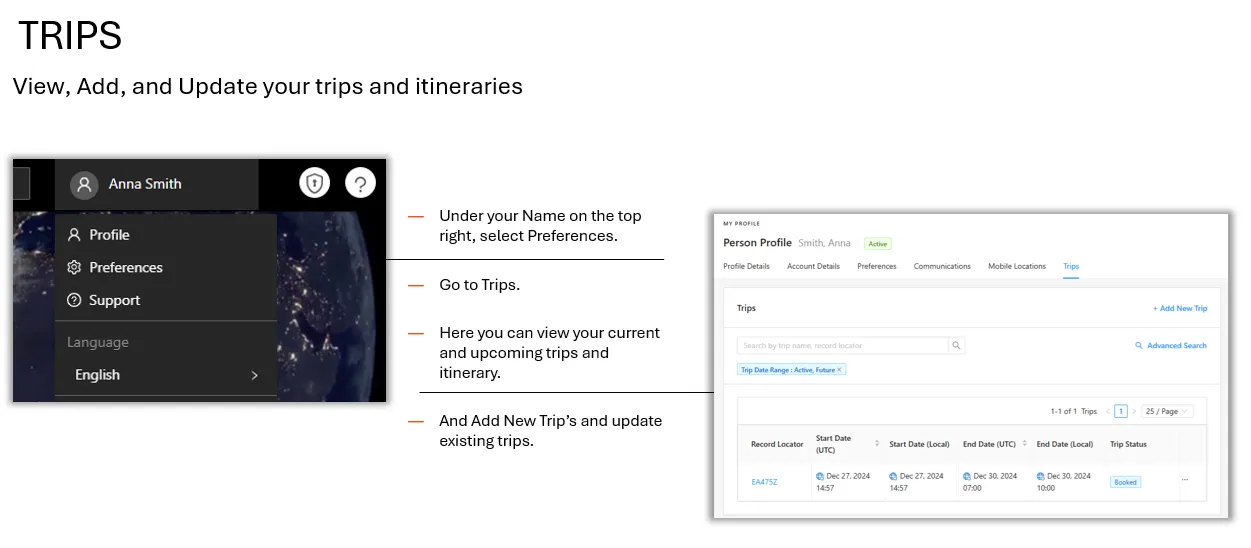
- Go to your profile by clicking on your name in the upper right-hand corner of the main page and choose 'Profile'
- Select 'Trips' on the menu,
- Select the trip you would like to revise or select 'Add New Trip' on the right side
- Input all fields, then choose +Add Trip Leg” to enter Flight, Accommodation, Car, or Rail segments.
For PDF instructions with screenshots: How to Register in Horizon
Helpful Trips When Manually Registering
- The Record Locator is either your booking confirmation number or what you would like to name your trip. For example if you are traveling to Spain in October 2026, your record location can be "Spain - October 20206 Trip".
- For each leg tip, you will select ‘Add Trip Leg’ and the leg types will populate.
- For Airlines, select from the dropdown menu
- “Local End Date/Time” is the arrival date/time in the destination(s) and/or upon return
- Mark the flights and accommodations as "Ticketed"
- Under Additional Fields, in the notes section you can list emergency contact information for this specific trip, any in-country contacts and their contact information, and other relevant information you would like GRSO to have
- Update your profile if your email or phone number is going to be different while you are on CU-related international travel.
For any issues registering travel in Horizon, contact Crisis24 Support at [email protected]
Using the SAME email address that you use to sign into Crisis24 Horizon, forward the booking confirmation email with any attachments that you receive from the booking site, airlines, hotel, etc. to the email address associated with the Member ID you used to set up your profile. Please find the listing of Member IDs and associated email addresses below:
Best Practices for Forwarding your Itinerary
Forward the original confirmation email to ensure we are able to collect all available information. Emails can be forwarded normally (HTML email) or attached to a new email as a PDF, if that was the format provided when booking. Email Parsing is done through automated template scanning, if an email is manipulated in any way, it no longer fits the template and cannot be scanned.
Do Not Send Confirmation emails with:
- Conversations, or any text added above the confirmation email
- Photos or scans of confirmation emails/itineraries
- Multiple confirmation emails in one email thread
- Multiple confirmation files in one email
The Crisis24 Horizon App
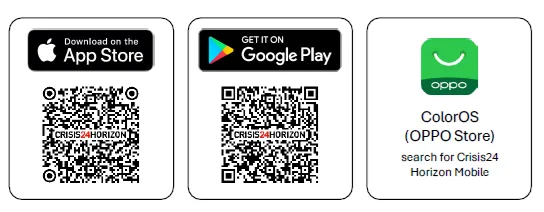
Search for "Crisis24 Horizon” in your smartphone's app store.
- Open the mobile or web app, enter your email address, and tap Create Account.
- Enter the additional personal details as well as the Member ID referenced in your Pre-Travel notification email, and tap Next.
- Open the Welcome email and click to activate your account.
- Create your password and then Sign-In to access Horizon.
Desktop: Go to Preferences, located under your name on the top-right, and set up your preferred notifications.
Mobile: Follow the prompts to enable Push Notifications and Location Services to receive alert notifications based on your current location
- Alerts of threats and disruptions - Set up notifications and stay informed!
- Risk Ratings and Location Intelligence of safety & security issues in countries, provinces, and cities worldwide.
- Awareness of Threat Zones - areas within cities and regions that are of higher risk than the surrounding areas - such as high-crime neighborhoods.
- Advice Sheets to mitigate a range of safety and security issues.
- 24/7 Hotline and Crisis Signal on the mobile app to use in times of need.
For any technical issues with registering in Horizon or with the Horizon app, please email [email protected]